WeeChat perl plugin on SmartOS

Posted by Dave Eddy on Mar 30 2015 - tags: tech

Here’s a quick hack to get the perl plugin working for WeeChat on the latest (2014Q4) [SmartOS] (http://smartos.org)

weechat is now in pkgsrc, but it appears to have been built without perl support, which renders certain plugins not working with errors like:

/script install pushover.pl
script: script "pushover.pl" can not be installed because plugin "perl" is not loaded
/plugin load perl
Error: unable to load plugin "perl": ld.so.1: weechat: fatal: perl: open failed: No such file or directory
If you're trying to load a script and not a C plugin, try command to load scripts (/perl, /python, ...)

How

To quickly work around this:

1 install weechat from pkgsrc

pkgin in weechat

This will install weechat without the perl plugin

2 compile weechat at the same version from source

wget https://weechat.org/files/src/weechat-1.0.tar.gz
tar xzf weechat-1.0.tar.gz
cd weechat-1.0
mkdir build
cd build
cmake ../ -DPREFIX=/opt/local
make

THIS WILL FAIL, version 1.0 does not compile cleanly on SmartOS. However, perl.so has been built, which is all we need

3 move the plugin into place

sudo cp ./src/plugins/perl/perl.so /opt/local/lib/weechat/plugins/

4 it works

/plugin load perl will now work as expected

todo

  1. have weechat in pkgsrc built with perl support - https://github.com/joyent/pkgsrc/issues/252
  2. fix weechat build problems on SmartOS - https://github.com/weechat/weechat/issues/381

Human Readable Duration in Bash

Posted by Dave Eddy on Jun 29 2014 - tags: tech

show seconds in a human-readable form using pure bash

This function provides a simple way to turn a number of seconds into a human readable form using minutes, hours, days, etc. For example.

$ human 50
50 seconds
$ human 600
10 minutes
$ human 75890
21 hours
$ human 475890
5 days
$ echo "bash has been running for $(human "$SECONDS")"
bash has been running for 2 minutes

The Code

human() {
    local seconds=$1
    if ((seconds < 0)); then
        ((seconds *= -1))
    fi

    local times=(
    $((seconds / 60 / 60 / 24 / 365)) # years
    $((seconds / 60 / 60 / 24 / 30))  # months
    $((seconds / 60 / 60 / 24 / 7))   # weeks
    $((seconds / 60 / 60 / 24))       # days
    $((seconds / 60 / 60))            # hours
    $((seconds / 60))                 # minutes
    $((seconds))                      # seconds
    )
    local names=(year month week day hour minute second)

    local i
    for ((i = 0; i < ${#names[@]}; i++)); do
        if ((${times[$i]} > 1)); then
            echo "${times[$i]} ${names[$i]}s"
            return
        elif ((${times[$i]} == 1)); then
            echo "${times[$i]} ${names[$i]}"
            return
        fi
    done
    echo '0 seconds'
}

MIT License

Cross-Platform Implementation of which

Posted by Dave Eddy on May 22 2014 - tags: tech

binfind

find the path of a binary in your PATH using only bash

The tool which(1) has many different implementations on many different operating systems. Because of this, its output and return codes are not well-defined, and should not be trusted in the context of a script. However, it is often desirable to determine if an executable exists on a filesystem, without having to fork the executable itself to test.

The algorithm which(1) uses is fairly simple: loop over all paths found in the environmental variable PATH, and test for the existence, and executable bit, of the binary in question.

The function below will search your PATH for the binary name given as the first argument, and print the full path of the first binary found and return 0 if it is successful. Otherwise, it won’t print anything, and will return 1.

binfind() {
    local paths path
    IFS=: read -a paths <<< "$PATH"
    for path in "${paths[@]}"; do
        path=${path:-.}/$1
        if [[ -x $path ]]; then
            echo "$path"
            return 0
        fi
    done
    return 1
}

Example usage

$ binfind echo
/bin/echo
$ binfind clang
/usr/bin/clang
$ binfind foobar
$ echo $?
1

Directory Management with cd

Posted by Dave Eddy on Sep 14 2013 - tags: tech

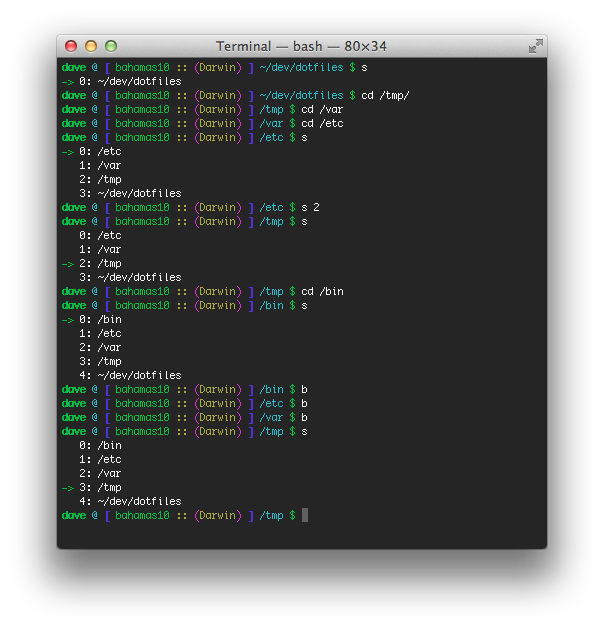
You cd around like you normally would, and the directories are pushed into a stack. Use the function s to view the stack of directories, and run s "$num" to cd into the directory listed. Use b to jump back 1 directory.

I was inspired by this article written by Derek Wyatt about directory management in BASH. The code I’ve written for this accomplishes most of the same tasks, but does so with about 1/3 of the code, as this was written specifically for BASH (no legacy KSH bits) and doesn’t implement any of the fancier features for cd.

Example

In the above example I cd around a bit, and then run s to see what the current stack looks like. The current stacks shows all of my previous directories in reverse order (limited to $CD_STACK_MAX entries, which defaults to 15).

The code is on GitHub here https://github.com/bahamas10/bash-cdstack


What's Open Now?

Posted by Dave Eddy on Jun 18 2013 - tags: tech

You sit down to watch the LMN premier of Drew Peterson: Untouchable, when next thing you know, you just watched LMN for the last 6 hours, it is now 4am, and you’re hungry. The obvious question is “What’s open?”, but where do you find the answer?

What’s Open has the answer.

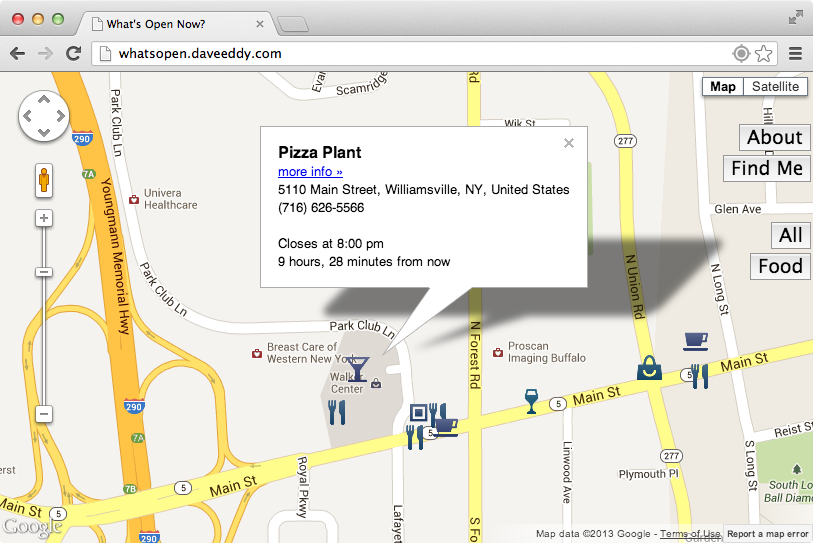
What’s Open is a free service that uses Google Maps to show what places are around you are currently open.

whats-open

Skye came up with the idea, and I wrote the code.

You can view the site here http://whatsopen.pw

As well as view the source code here https://github.com/bahamas10/whats-open


Synchronous File IO in Node.js

Posted by Dave Eddy on Mar 26 2013 - tags: tech

Does calling fs.writeFileSync trigger a synchronous write to the file system?

If you are familiar with Node.js, or have at least heard of it, you’ve most likely heard that it uses non-blocking IO, and lets you do work asynchronously. One of the most basic APIs that Node provides is for the file system; With this API, you can read, write, remove, etc. files and do other file system related tasks and modifications.

This API follows a standard pattern of exposing 2 functions for each operation: one for asynchronous work, and the other for synchronous work. For example, if you want to read a file in Node you can do so asynchronously:

var fs = require('fs');
fs.readFile('/etc/passwd', function(err, buf) {
  console.log(buf.toString());
});

Node will continue executing any javascript code it encounters while reading the file. Once all javascript is done being executed and the file is ready, it will run the anonymous function and print the file contents.

Read More...


Unfreeze Photoshop

Posted by Dave Eddy on Feb 27 2013 - tags: tech

Unfreeze a frozen Photoshop on Mac

I wrote an app to unfreeze a stuck or frozen photoshop. If you’re running photoshop, and it starts beachballing, or not responding on you, try running this. This application will help if suddenly you have a frozen photoshop, and you want to fix it.

Download the app

screenshot

Read more about it here


High Performance Node.js Logging with console.log buffering

Posted by Dave Eddy on Dec 06 2012 - tags: tech

Buffer calls to console.log, console.warn, etc. for high performance logging

Description

Calls to console.log, console.error, etc. are synchronous, and as such, will block the event loop while the data is being written to a file, terminal, socket, pipe, etc.

This module provides a seamless, drop-in buffer for all calls to these functions, and flushes them when the buffers exceed a certain size (8k by default).

See Known Issues for timing concerns with this module.

View the project on GitHub

Read More...